
Table of contents
Tool to Help Validate Identity Federation Configuration via Microsoft Entra ID
Synopsis
This page is dedicated to using a script produced by Octopus that allows you to diagnose configuration problems with the enterprise applications used by Octopus.
If you are trying to establish a connection between Octopus and Entra ID for authenticating your users and are experiencing difficulties, this page describes step by step what to do to obtain a complete diagnostic of your enterprise applications' configuration. The report produced can help you identify the source of the problem.
This article assumes that you have already completed all the steps in the following wikis for setting up your enterprise applications:
- https://wiki.octopus-itsm.com/en/articles/identity-federation-microsoft-entra-id
- https://wiki.octopus-itsm.com/en/articles/identity-federation-microsoft-entra-id-api-application
- This application may be optional depending on the options enabled in your Octopus environment
Prerequisites
- Download the PowerShell script package
- Have an Entra ID account with the following permissions:
- Application.Read.All
- Directory.Read.All
- The Microsoft.Graph.Authentication PowerShell module must be installed
- If it is not, the script will attempt to install it automatically. It will then need authorization for NuGet
- Make sure these modules comply with your organization's internal policies
- The script uses Microsoft Graph Command Line endpoints to perform the checks
How It Works
The script is designed to prompt for the necessary information at the appropriate time. A log file will be created in the same directory from which it is run.
Execution
Obtaining the Identifiers (GUIDs)
The script needs a few identifiers (GUIDs) and the name of the Octopus environment. The GUIDs can all be found in the same place : the identity federation configuration window of the Octopus Windows client.
Opening the Configuration Window
In the Octopus Windows client :
- Tools menu
- Identity Federation Configuration
The following window is displayed :
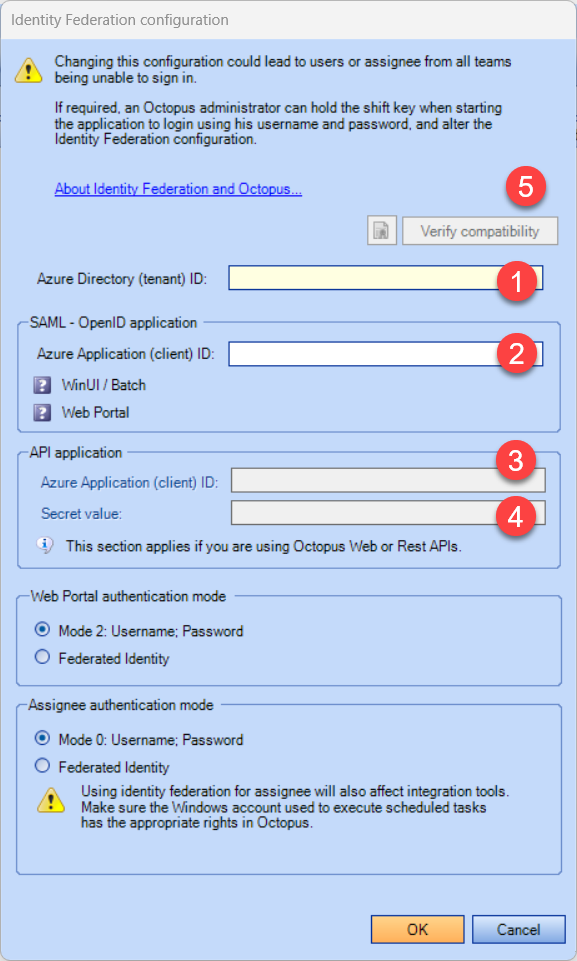
Locating Each Value
| Field in the Octopus window | Value to copy | Script parameter |
| Directory (tenant) ID [Field #1] | Entra ID tenant GUID | -TenantId |
| SAML - OpenID Application → Application (client) ID [Field #2] | SAML/OpenID application GUID | -AppId |
| API Application → Application (client) ID (if used) [Field #3] | API application GUID | -ApiAppId |
Octopus Environment Name
This is the <name> in the Octopus web address https://<name>.octopus-itsm.com. For example, for https://acme.octopus-itsm.com, the environment name is acme.
You can identify this URL by viewing the address of the installation package
In the Octopus Windows client :
- Tools menu
- Show installation package address
Running the Script
Option A — Interactive Mode (recommended)
No parameters : the script prompts for each value and checks that the GUIDs are well-formed.
If script execution is blocked by Windows :
Option B — With Values as Parameters
Handy for quickly rerunning a test. Replace the GUIDs with those collected in step 2, along with the environment name :
If the API application is not used, omit -ApiAppId :
Reviewing the Report and Fixing Identified Issues
The script produces a PASS / FAIL / INFO report and saves a log file named OctopusEntra-Federation-YYYYMMDD-HHMMSS.log next to the script.
The information collected by the script may help your Entra ID administrator fix the problem.
Opening a Ticket with Our Service Desk
If you are unable to resolve the problem, you can contact our Service Desk for additional assistance
- Log in to our web portal and open a new request (or ask an authorized administrator in your organization to do so)
- Provide the following information:
- Contact details of the person who administers Entra ID
- First and last name
- Email address
- Job title
- Contact details of the person who administers Entra ID
- Include the log file produced by the script
- Send us the complete .log file, not just a screenshot
- It does not contain any passwords, secrets, or authentication tokens
Please note that to obtain assistance from our Service Desk, it is essential to have the log file produced by this script.
Guide to Diagnosing Entra ID Errors When Authenticating to Octopus
AADSTS53003
- Access was blocked by conditional access policies.
Probable Cause
- A conditional access policy is blocking this connection.
AADSTS50126
- Credential validation error: invalid username or password.
Probable Cause
- The user entered an incorrect username or password.
- The password was recently changed.
- Cached credentials are being used.
- The account's authentication method does not allow the validation expected by Entra ID.
- Entra ID has throttled the user's sign-in.
- This is the most likely cause if the error occurs sporadically and resolves itself without intervention
AADSTS50011
- The redirect URL specified in the request does not match any URL configured for the application.
Probable Cause
- The Redirect URI configured in Entra ID does not match the one used during sign-in.
- Protocol mismatch (HTTP/HTTPS).
- Port mismatch.
- Case mismatch or missing trailing "/" character.
AADSTS50079
- The user must register for multi-factor authentication (MFA).
Probable Cause
- An MFA or conditional access policy requires MFA registration.
- The user has not yet set up their MFA method.
- This often occurs if the account was just created in Entra ID. The way to resolve this scenario is to authenticate with this account for the first time in Outlook on the web.
AADSTS7000112
- The application is disabled.
Probable Cause
- The Enterprise Application has been disabled.
- The App Registration is no longer allowed to receive authentication requests.
AADSTS50105
- The signed-in user is not assigned to any role or is not assigned to the application.
Probable Cause
- The User assignment required option is enabled.
- The user or their group has not been assigned to the application in Entra ID.
AADSTS50053
- The account is locked out following several failed sign-in attempts.
Probable Cause
- Entra ID's Smart Lockout has been triggered.
- Several incorrect password attempts have been detected.
- Suspicious activity has been identified by Entra ID.
AADSTS7000218
- The request body must contain the "client_assertion" or "client_secret" parameter.
Probable Cause
- The application is configured as a confidential client.
- Enable the "Allow public client flows" option under the Authentication tab of the Enterprise Application registration settings
Thank you, your message has been sent.